
Developer Licence: Difference between revisions
More actions
No edit summary |
Mailliwoail (talk | contribs) m Changed the WPR rating to 2 |
||
| (7 intermediate revisions by 4 users not shown) | |||
| Line 1: | Line 1: | ||
{{Jobs}} | {{Quality|quality=2|date=26 August 2026}}{{Jobs}} | ||
A | A '''Developer''' licence allows you to create leasehold subregions for freehold regions. This is useful for when you are trying to create: | ||
* Apartments | * Apartments | ||
| Line 10: | Line 10: | ||
Creating these subregions only require you to select the space and run one simple command! | Creating these subregions only require you to select the space and run one simple command! | ||
== Subregion Wand == | |||
* Grab a wand, run <code>/realty subregion wand</code> | |||
* Select your area by right clicking all the corners with your wand | |||
* Run <code>/realty subregion confirm</code>, set your height, price, max extensions etc. | |||
== Leasing Updates == | |||
Landlords can no longer instantly change the rent on existing tenant. Instead they must propose a modification like so: | |||
/realty modify <price/duration/maxextensions> <value> | |||
The new terms apply the next time the tenant extends their lease, and the tenant can simply decline by not renewing, letting the lease end naturally. | |||
'''Tenants can now propose changes too.''' | |||
* Run <code>/realty modify <price/duration/maxextensions> <value></code> as the tenant | |||
* Your landlord sees all modification requests via <code>/realty modify inbox</code> | |||
* Your landlord reviews it with <code>/realty modify accept <region></code> or <code>/realty modify reject <region></code> | |||
* Check your own pending proposals any time with <code>/realty modify outbox</code> | |||
Either party can end a lease early, but it now honours a mandatory notice period of '''3 days.''' | |||
Landlords can run: <code>/realty terminate <region></code> | |||
The lease ends after the notice window, with prorated refunds issued automatically. This is cancellable at any time with <code>/realty terminate cancel <region></code> | |||
'''You can now close a region to new tenants.''' | |||
Done renting a place out? Stop it being rentable the moment it goes vacant: | |||
<code>/realty rentable false <region></code> | |||
{{Note|type=error|1=The instructions below this are currently disabled! Please use the subregion wand method above to properly use your License.}} | |||
== Selecting your Space == | == Selecting your Space == | ||
The '''shape''' of your proposed rental will determine how you select your subregion's space. | The '''shape''' of your proposed rental will determine how you select your subregion's space. | ||
=== Cuboid (rectangle/square) === | === Cuboid (rectangle/square) === | ||
| Line 19: | Line 51: | ||
# Place two blocks marking the corners of your space | # Place two blocks marking the corners of your space | ||
# Run <code>//wand</code> to grab a WorldEdit wand | # Run <code>//wand</code> to grab a WorldEdit wand | ||
# '''LEFT CLICK''' your '''first''' corner corner with your wand | # '''LEFT CLICK''' your '''first''' corner corner with your wand | ||
# '''RIGHT CLICK''' your '''second''' corner with your wand | # '''RIGHT CLICK''' your '''second''' corner with your wand | ||
| Line 28: | Line 60: | ||
If it is incorrect, you can run the command <code>//sel</code> and repeat Steps 1 to 4 again. | If it is incorrect, you can run the command <code>//sel</code> and repeat Steps 1 to 4 again. | ||
Now you are ready to run the subregion command, see the '''Subregion''' '''Command''' section. | Now you are ready to run the subregion command, see the '''Subregion''' '''Command''' section. | ||
[[File: | [[File:Creating a Cuboid Selection.gif|thumb|516x516px|A player creating a cuboid selection in-game. Click if video isnt playing! (NOT WORKING USE SUBREGION WAND)]] | ||
=== Polygon === | === Polygon === | ||
| Line 36: | Line 68: | ||
# Place blocks marking '''each corner''' of your space | # Place blocks marking '''each corner''' of your space | ||
# Run <code>//wand</code> to grab a WorldEdit wand | # Run <code>//wand</code> to grab a WorldEdit wand | ||
# Run <code>//sel poly</code> to change to Polygon mode | # Run <code>//sel poly</code> to change to Polygon mode | ||
# '''LEFT CLICK''' your '''first''' corner with your wand | # '''LEFT CLICK''' your '''first''' corner with your wand | ||
# '''RIGHT CLICK''' your '''every other''' corner with your wand | # '''RIGHT CLICK''' your '''every other''' corner with your wand | ||
# '''RIGHT CLICK''' your '''first''' corner again to '''seal''' your selection | # '''RIGHT CLICK''' your '''first''' corner again to '''seal''' your selection (IMPORTANT! YOU CANNOT SKIP THIS STEP!) [[File:Create a Polyregion Selection.gif|thumb|513x513px|A player creating a polygon selection in-game. Click if video isnt playing!]] | ||
==Subregion Command== | |||
<code>/realty subregion quickcreate <parentRegion> <name> <price> <duration></code> | |||
Each argument is explained below | |||
* <parentRegion> - This is the region that your rental is inside of. You can only have one parent. e.g. c100 | |||
* <name> - This is the name of your new rental. e.g. cool-apt-1 | |||
* <price> - This is the dollar price of your rental, do not include any currency sign. e.g. 100.25 | |||
* <duration> - This is the duration of your lease period. e.g. 30d | |||
** For duration, you can use the following suffixes: `s (seconds), m (minutes), h (hours), d (days), w (weeks)` | |||
Example: <code>/realty subregion quickcreate c100 cool-apt-1 100.25 30d</code> | |||
* | * This creates a new subregion inside c100 called cool-apt-1, which you can pay $100.25 every 30 days to lease (rent) | ||
== Additional Information == | == Additional Information == | ||
* Your subregion '''cannot have more than one parent'''. In such cases, ask a Staff member to region for you | * Your subregion '''cannot have more than one parent'''. In such cases, ask a Staff member to region for you | ||
* You can only create '''LEASEHOLD''' subregions | * You can only create '''LEASEHOLD''' subregions | ||
| Line 71: | Line 100: | ||
* You can clear your selection any time by running <code>//sel</code> | * You can clear your selection any time by running <code>//sel</code> | ||
* To go back to Cuboid mode, run <code>//sel cuboid</code> | * To go back to Cuboid mode, run <code>//sel cuboid</code> | ||
* Only the plot owner is able to create subregions | |||
[[Category:Licenses]] | |||
Latest revision as of 00:08, 27 August 2026
 | This article has been rated quality WRP-2 by the archivists participating in the Wiki Revitalisation Project 2026. Last updated: 26 August 2026 |
| Jobs |
|---|
 |
| Licences |
| Trades |
| Professions |
| Government jobs |
| Defunct |
| Category |
A Developer licence allows you to create leasehold subregions for freehold regions. This is useful for when you are trying to create:
- Apartments
- Market Stalls
- Stores
- Offices
- ...and any other rentable spaces!
Creating these subregions only require you to select the space and run one simple command!
Subregion Wand
- Grab a wand, run
/realty subregion wand - Select your area by right clicking all the corners with your wand
- Run
/realty subregion confirm, set your height, price, max extensions etc.
Leasing Updates
Landlords can no longer instantly change the rent on existing tenant. Instead they must propose a modification like so:
/realty modify <price/duration/maxextensions> <value>
The new terms apply the next time the tenant extends their lease, and the tenant can simply decline by not renewing, letting the lease end naturally.
Tenants can now propose changes too.
- Run
/realty modify <price/duration/maxextensions> <value>as the tenant - Your landlord sees all modification requests via
/realty modify inbox - Your landlord reviews it with
/realty modify accept <region>or/realty modify reject <region> - Check your own pending proposals any time with
/realty modify outbox
Either party can end a lease early, but it now honours a mandatory notice period of 3 days.
Landlords can run: /realty terminate <region>
The lease ends after the notice window, with prorated refunds issued automatically. This is cancellable at any time with /realty terminate cancel <region>
You can now close a region to new tenants.
Done renting a place out? Stop it being rentable the moment it goes vacant:
/realty rentable false <region>
Selecting your Space
The shape of your proposed rental will determine how you select your subregion's space.
Cuboid (rectangle/square)
If you plan on having your rental be a rectangle or square, follow these steps.
- Place two blocks marking the corners of your space
- Run
//wandto grab a WorldEdit wand - LEFT CLICK your first corner corner with your wand
- RIGHT CLICK your second corner with your wand
You should now see a preview of your selection using little fire particles, confirm that is the correct selection.
If it is incorrect, you can run the command //sel and repeat Steps 1 to 4 again.
Now you are ready to run the subregion command, see the Subregion Command section.

Polygon
If you plan on having your rental NOT be rectangle or square, follow these steps.
- Place blocks marking each corner of your space
- Run
//wandto grab a WorldEdit wand - Run
//sel polyto change to Polygon mode - LEFT CLICK your first corner with your wand
- RIGHT CLICK your every other corner with your wand
- RIGHT CLICK your first corner again to seal your selection (IMPORTANT! YOU CANNOT SKIP THIS STEP!)
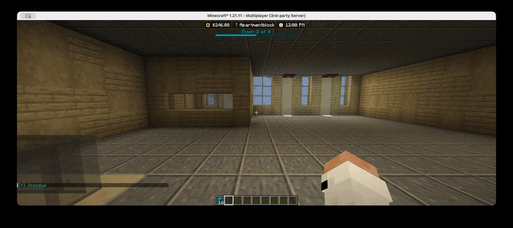
A player creating a polygon selection in-game. Click if video isnt playing!

Subregion Command
/realty subregion quickcreate <parentRegion> <name> <price> <duration>
Each argument is explained below
- <parentRegion> - This is the region that your rental is inside of. You can only have one parent. e.g. c100
- <name> - This is the name of your new rental. e.g. cool-apt-1
- <price> - This is the dollar price of your rental, do not include any currency sign. e.g. 100.25
- <duration> - This is the duration of your lease period. e.g. 30d
- For duration, you can use the following suffixes: `s (seconds), m (minutes), h (hours), d (days), w (weeks)`
Example: /realty subregion quickcreate c100 cool-apt-1 100.25 30d
- This creates a new subregion inside c100 called cool-apt-1, which you can pay $100.25 every 30 days to lease (rent)
Additional Information
- Your subregion cannot have more than one parent. In such cases, ask a Staff member to region for you
- You can only create LEASEHOLD subregions
- You cannot overlap with other subregions
- The landlord is automatically set to you
- Subregions must have meet the minimum size of 20 BLOCKS
- Resizing, changing landlord, price, or duration requires a Staff member
- You can clear your selection any time by running
//sel - To go back to Cuboid mode, run
//sel cuboid - Only the plot owner is able to create subregions