
More actions
.CaldironJa1 (talk | contribs) |
.CaldironJa1 (talk | contribs) |
||
| (15 intermediate revisions by the same user not shown) | |||
| Line 48: | Line 48: | ||
Both are essential for making art, and their crafting recipes can be accessed via the command /artmap. | Both are essential for making art, and their crafting recipes can be accessed via the command /artmap. | ||
Additionally, designers have the ability to craft hats and | Additionally, designers have the ability to craft hats, cameras and instruments, findable using {{Code|/recipes}} | ||
[[File:Hats -ia.png|thumb|Some of the hats available to craft as a designer.]] | [[File:Hats -ia.png|thumb|Some of the hats available to craft as a designer.]] | ||
| Line 64: | Line 64: | ||
[[File:Artmap_dye_chart.png|thumb]] | [[File:Artmap_dye_chart.png|thumb]] | ||
== Saving artwork == | === Saving artwork === | ||
After creating your masterpiece, you can save it in two ways: | After creating your masterpiece, you can save it in two ways: | ||
| Line 81: | Line 81: | ||
To view other players' art, use the command <code>/artmap</code> and access artworks. Click on player heads to explore their artwork. | To view other players' art, use the command <code>/artmap</code> and access artworks. Click on player heads to explore their artwork. | ||
== Cameras == | |||
A camera allows you to capture a still image of the world around you! All you have to do is point where you want to capture and interact with the item. Note that the cost of taking a picture is 1 paper, required to be in your inventory for the camera to work. | A camera allows you to capture a still image of the world around you! All you have to do is point where you want to capture and interact with the item. Note that the cost of taking a picture is 1 paper, required to be in your inventory for the camera to work. | ||
| Line 89: | Line 89: | ||
</gallery> | </gallery> | ||
== Instruments == | |||
[[File:Instruments.png|thumb]] | [[File:Instruments.png|thumb]] | ||
| Line 97: | Line 97: | ||
A total of sixteen instruments are available. | A total of sixteen instruments are available. | ||
=== List of Instruments === | |||
*Banjo | |||
*Bass Drum | |||
*Snare Drum | |||
*Sticks | |||
*Bass Guitar | |||
*Guitar | |||
*Piano | |||
*Flute | |||
*Bell | |||
*Chime | |||
*Cow Bell | |||
*Xylophone | |||
*Iron Xylophone | |||
*Didgeridoo | |||
*Pling | |||
*Bit | |||
=== Crafting Materials === | |||
Instrument production requires cooperation between several professions. | |||
Once all components have been gathered, a Designer can craft the final instrument. | |||
- | '''Metal String''' - Crafted by [[Miner]] and used in string instruments and percussion instruments. | ||
- | '''Iron Instrument Component''' - Crafted by Miners and used in metallic and electronic instruments. | ||
- | '''Speaker''' - Crafted by [[Mechanic]] and used in electronic instruments. | ||
- | '''Large Instrument Body''' - Crafted by [[Carpenter]] and used in larger instruments. | ||
- | '''Small Instrument Body''' - Crafted by Carpenters and used in most handheld instruments. | ||
- | '''Tuning Knob''' - Crafted by Designers and used in string instruments. | ||
'''Xylophone Mallet''' Crafted by Designers and used in xylophones. | |||
Crafted by | |||
'''Drum Skin''' - Crafted by [[Hunter]] and used in percussion instruments. | |||
[[category:trades]] | [[category:trades]] | ||
Latest revision as of 17:42, 10 June 2026
| Jobs |
|---|
 |
| Licences |
| Trades |
| Professions |
| Government jobs |
| Category |
As a Designer, you have the creative freedom to express yourself using the ArtMap plugin.
What designers do
As a Designer, your creative tasks are diverse and include:
1. Creative Pieces
You have the artistic prowess to craft breathtaking creative pieces that can range from traditional paintings to intricate pixel art. Your imagination is your only limit.
2. Business Advertisements
With your creative skills, you can develop eye-catching advertisements that businesses can use to promote their products or services. Your designs can play a vital role in attracting customers.
3. Political Advertisements
In the world of politics, your designs have the power to sway opinions and inform the masses. Create compelling political advertisements that convey important messages and campaign strategies.
4. Galleries
Designers also curate galleries to showcase their artistic masterpieces. These galleries are spaces where players and art enthusiasts can appreciate and enjoy your creative work.
ArtMap
Dyes
Dive into a world of colors for your artwork by accessing the Dyes feature in the ArtMap GUI (/artmap).
This allows you to explore a wide variety of colors, with multiple pages of colors to choose from. You can view and select these colors while sitting at your easel and canvas.
Tools

In the ArtMap GUI, you’ll find various tools by clicking the Book and Quill. These tools include the Bucket, Coal, Feather, and Compass, each serving a unique purpose.
Paint bucket
The paint bucket serves as a filler tool. Left-click to fill areas of the canvas with the dye in your offhand. To undo the last fill, simply right-click while holding the bucket.
Coal
The coal tool enables you to adjust the brightness of pixels, giving you more shades of colors. It’s useful for darkening a color once or twice. Hold the coal and right-click on a color to make it darker.
Feather
The feather tool performs the opposite function of coal. Instead of darkening a color, it lightens it.
Compass
The compass tool allows you to flip your art vertically or horizontally.
Left-click while holding the compass to flip your art horizontally.
Crafting
Before creating art, you must:
- Craft an easel using sticks.
- Craft a canvas.
Both are essential for making art, and their crafting recipes can be accessed via the command /artmap.
Additionally, designers have the ability to craft hats, cameras and instruments, findable using /recipes

Painting
To start painting:
- Place your easel.
- Take a crafted canvas.
- Right-click the easel to attach the canvas.
Now you’re ready to paint! Right-click the easel to begin painting. You can use left-click for individual pixels and hold right-click to draw lines.
To take a break from painting, press the shift key to exit the easel, ensuring your art is saved for later.

Saving artwork
After creating your masterpiece, you can save it in two ways:
- While sitting at your easel, type /art save [name].
- Right-click your art with the paintbrush in your inventory.
For the second method, a GUI similar to an anvil interface will appear, allowing you to enter an artwork title and finalize it.
Displaying art
To display your art, place an item frame and right-click it while holding your art. It will appear as a picture.
You can make copies by combining blank maps and the original art in the crafting square. The number of blank maps used determines the number of copies you receive. Remember, only the owner of the art can create copies.
Be cautious about your inventory while creating art, as picking up items while sitting at the easel and standing up will destroy the item, rendering it irretrievable.
To view other players' art, use the command /artmap and access artworks. Click on player heads to explore their artwork.
Cameras
A camera allows you to capture a still image of the world around you! All you have to do is point where you want to capture and interact with the item. Note that the cost of taking a picture is 1 paper, required to be in your inventory for the camera to work.
-
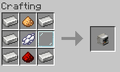 The recipe to craft a camera, replace dye with any color.
 -
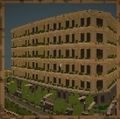 A beautiful architecture photo.


Instruments

Instruments are craftable musical items available through the profession recipes. When used, an instrument opens a note interface that allows players to play melodies by clicking different notes, making it possible to perform songs and musical compositions.
A total of sixteen instruments are available.
List of Instruments
- Banjo
- Bass Drum
- Snare Drum
- Sticks
- Bass Guitar
- Guitar
- Piano
- Flute
- Bell
- Chime
- Cow Bell
- Xylophone
- Iron Xylophone
- Didgeridoo
- Pling
- Bit
Crafting Materials
Instrument production requires cooperation between several professions. Once all components have been gathered, a Designer can craft the final instrument.
Metal String - Crafted by Miner and used in string instruments and percussion instruments.
Iron Instrument Component - Crafted by Miners and used in metallic and electronic instruments.
Speaker - Crafted by Mechanic and used in electronic instruments.
Large Instrument Body - Crafted by Carpenter and used in larger instruments.
Small Instrument Body - Crafted by Carpenters and used in most handheld instruments.
Tuning Knob - Crafted by Designers and used in string instruments.
Xylophone Mallet Crafted by Designers and used in xylophones.
Drum Skin - Crafted by Hunter and used in percussion instruments.